HDR photos shot on iPhone are stored in a single HEIC file, and there are three main HDR-related parts in that file:
- Baseline Image
- Gainmap Image
- Headroom in the metadata
This article explores two ways to handle HEIC files: one using Apple’s Core Image framework and the other combining official documentation with manual Python calculations.
The most straightforward documentation comes from Apple itself, explaining how to extract and use the data without relying on Apple frameworks:
https://developer.apple.com/documentation/appkit/applying-apple-hdr-effect-to-your-photos
Headroom
Apple generally uses Headroom to represent the luminance difference between HDR and SDR; it is the core parameter in Apple’s HDR ecosystem. Their displays often describe HDR capability in terms of Headroom, for example, the iPhone supports up to 8× Headroom, meaning HDR image luminance can reach up to eight times that of SDR.
There are three ways to retrieve Headroom from a photo:
- Directly from
XMP:HDRGainMapHeadroom - Calculated from two MakerNotes tags in the EXIF data:
MakerNotes:HDRHeadroom(tag0x0021)MakerNotes:HDRGain(tag0x0030)
- Read via Core Image (Swift)
Methods 1 and 2 work best with Exiftool; method 3 uses Swift.
// ReadHeadroom.swift
import CoreImage

let fileURL = URL(fileURLWithPath: "image.heic")

// 1. Load the image and enable the HDR expansion option
guard let image = CIImage(contentsOf: fileURL, options: [.expandToHDR: true]) else {
    fatalError("Failed to load image")
}

// 2. Read the contentHeadroom property
print("HDR Headroom: \(image.contentHeadroom)")
Taking the Core Image result as the reference, method 1 is closest (though with slightly fewer significant digits), while method 2 is the approach recommended in Apple’s documentation for use without Apple frameworks and shows a tiny deviation.
Baseline Image
Apple’s documentation usually refers to this as SDR RGB.
It is an 8-bit Baseline Image, theoretically ranging from 0 to 1. For Apple devices it resides in the Display P3 colour space, uses the sRGB transfer function, and the colour space is tagged with an ICC profile. It can be extracted with any library that supports HEIF; the main options are:
- Reading with Core Image after disabling the
.expandToHDRoption, choosing a colour space such asextendedLinearDisplayP3ordisplayP3, or different formats such asRGBAhorRGBA8. - Reading via ImageIO, which yields an 8-bit image.
- Extracting with
pillow-heif, which also produces an 8-bit image.
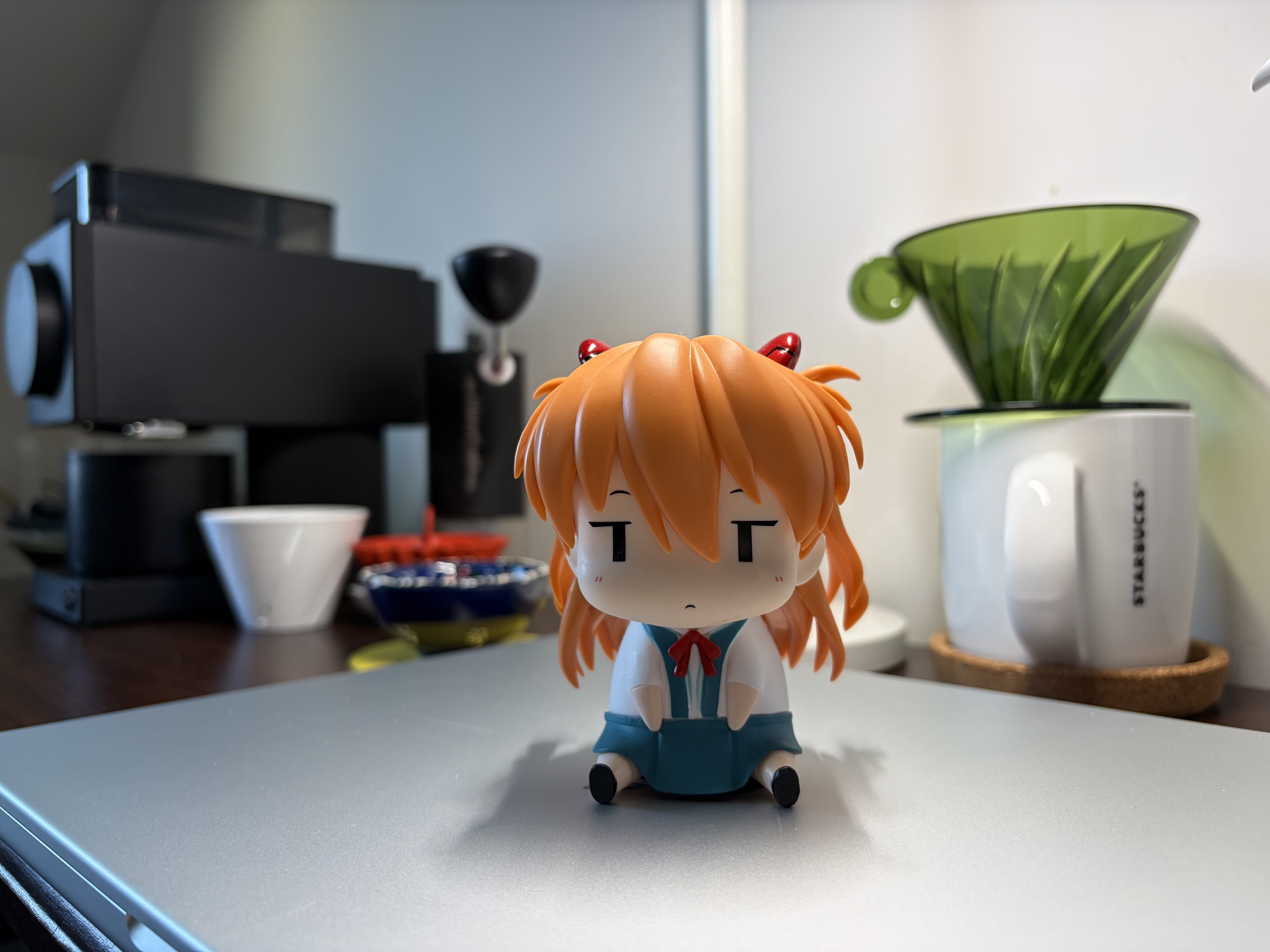
When the format is RGBAh or RGBAf, the image decoded by Core Image may contain values above 1.0 or below 0.0. Does this mean it also carries some HDR information? This has implications for later HDR processing, which will be covered shortly.
In addition, when the format is RGBA8, the Core Image result ranges from 0–255 and matches the pillow-heif extraction for the majority of pixels, but shows differences in highlights and shadows. This may be due to tone-compression handling inside Core Image. ImageIO output also deviates slightly from pillow-heif, again resembling decoder-specific processing.

Gainmap Image
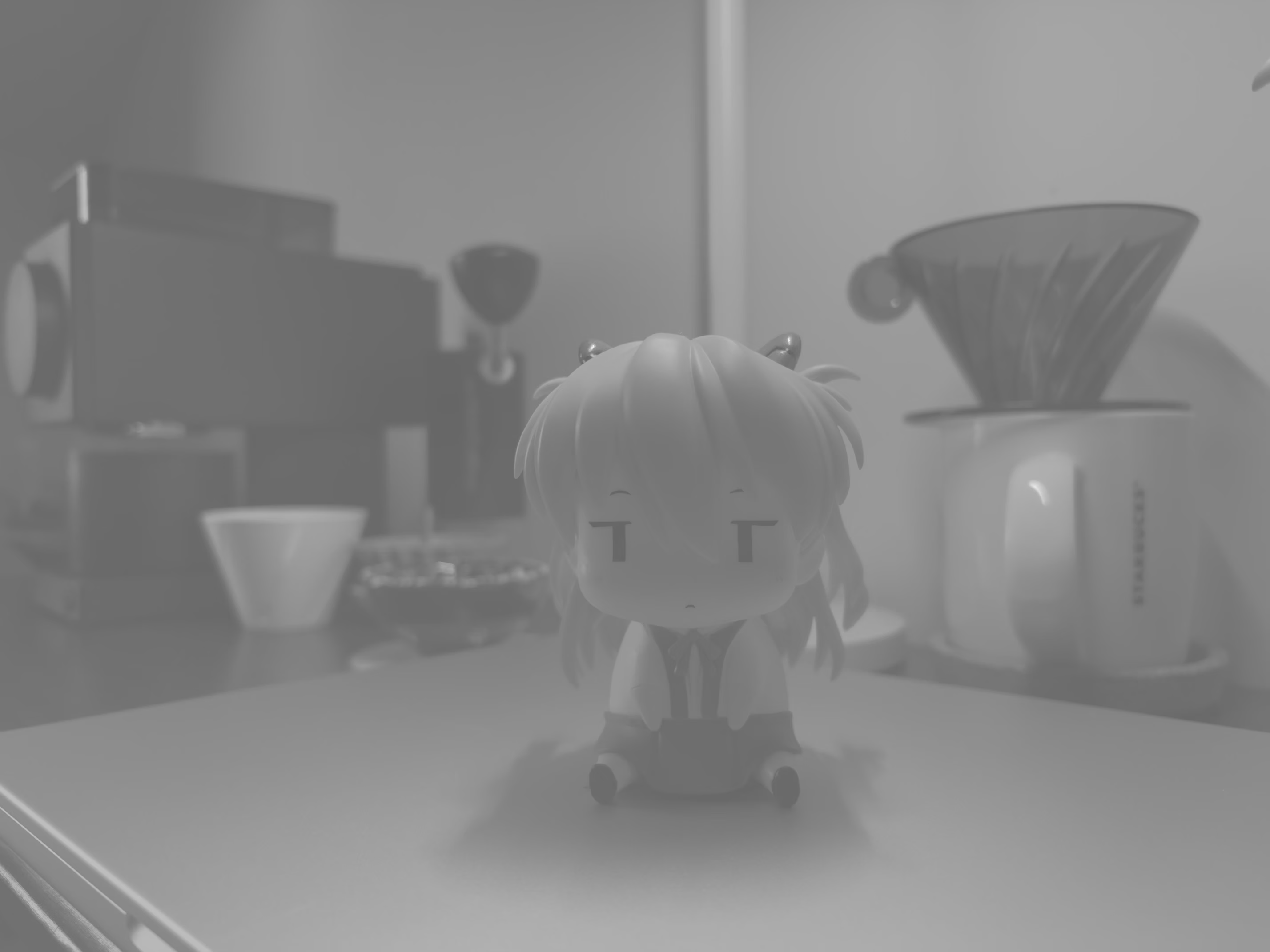
The gain map records how to combine the Baseline Image to produce the final HDR image. It is itself an image with values ranging from 0 to 1, half the width and height of the Baseline Image, greyscale, and encoded with the Rec.709 transfer function.
It can be extracted with Core Image and then saved as an uncompressed TIFF for convenient Python handling.
// ExtractGainmap.swift
import CoreImage

let fileURL = URL(fileURLWithPath: "image.HEIC")

// 1. Specify the auxiliaryHDRGainMap option to extract the Gain Map
let options: [CIImageOption: Any] = [
    .auxiliaryHDRGainMap: true,
    .applyOrientationProperty: true
]

guard let gainMapCIImage = CIImage(contentsOf: fileURL, options: options) else {
    fatalError("Gain Map information not found")
}

// 2. Render the CIImage to a CGImage
let context = CIContext()
let colorSpace = CGColorSpace(name: CGColorSpace.extendedLinearDisplayP3)!

let gainMapCGImage = context.createCGImage(
    gainMapCIImage,
    from: gainMapCIImage.extent,
    format: .RGBA8,
    colorSpace: colorSpace
)
Apple’s documentation also describes the method that does not depend on its frameworks:
Get the existing HDR gain map from the image’s auxiliary data using the
urn:com:apple:photo:2020:aux:hdrgainmapimage data type. The gain map is untagged and formatted as linear data. It’s encoded using the Rec.709 transfer function and is 1/4 the resolution of the original image.
In Python, for example, pillow-heif can extract it, and the result is identical to that from Core Image.
# extract_gainmap.py
import pillow_heif
from PIL import Image

heif_file = pillow_heif.read_heif("input.heic")

# Extract the auxiliary image ID for the HDR Gainmap
gain_map_urn = "urn:com:apple:photo:2020:aux:hdrgainmap"
if gain_map_urn in heif_file.info.get("aux", {}):
    gain_map_id = heif_file.info["aux"][gain_map_urn][0]
    aux_image = heif_file.get_aux_image(gain_map_id)

    # Build a PIL image
    gain_map = Image.frombytes(
        aux_image.mode,
        aux_image.size,
        aux_image.data,
        "raw",
        aux_image.mode,
        aux_image.stride
    )
Conversion to HDR
Following the manual HDR conversion procedure documented by Apple, the process is similar to other dual-layer HDR formats.
Before applying the conversion, perform these preparatory steps:
- Resize the Gainmap to match the original image dimensions.
- Linearise the Gainmap using the Rec.709 transfer function.
- Linearise the SDR RGB image with its corresponding transfer function; when reading via Core Image you can request a linear colour space such as
extendedLinearDisplayP3.
Then apply the formula:
hdr_rgb = sdr_rgb * (1.0 + (headroom - 1.0) * gainmap)
The result is a linear HDR image where 1.0 represents reference-white luminance. When both layers equal 1.0 the formula outputs exactly the headroom value, guaranteeing that peaks never exceed the headroom.
You can also let Core Image perform the conversion directly. According to Apple, the maximum value after conversion should not exceed Headroom, yet in practice Core Image output often significantly exceeds it, possibly related to the extended range observed in the Baseline Image earlier.
// ConvertToHDR.swift
import CoreImage

let fileURL = URL(fileURLWithPath: "image.heic")

// Extract and apply HDR parameters
let hdrOptions: [CIImageOption: Any] = [.expandToHDR: true]
guard let hdrCIImage = CIImage(contentsOf: fileURL, options: hdrOptions) else {
    fatalError("Failed to load image")
}

let context = CIContext()
let colorSpace = CGColorSpace(name: CGColorSpace.displayP3_PQ)!

// Render to high-dynamic-range format (RGBAh)
let hdrCGImage = context.createCGImage(
    hdrCIImage,
    from: hdrCIImage.extent,
    format: .RGBAh,
    colorSpace: colorSpace
)
The image below is the AVIF file produced by Core Image; the conversion script is available for download in the later section.
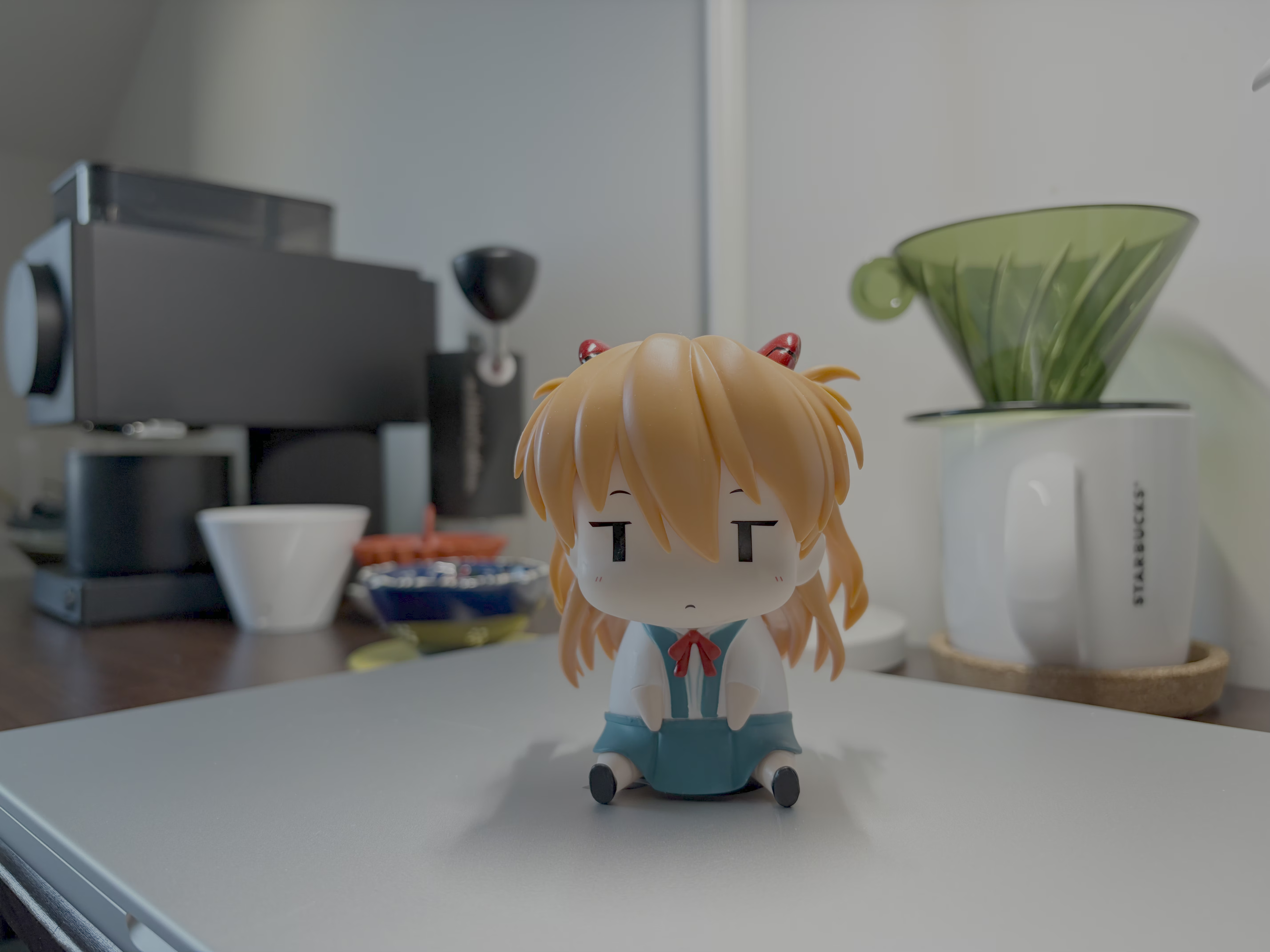
Taking the Core Image result as the reference, the fully manual conversion shows an average difference of about 1 %, especially the clipping in highlight regions. The next image was produced entirely manually without any Apple APIs.
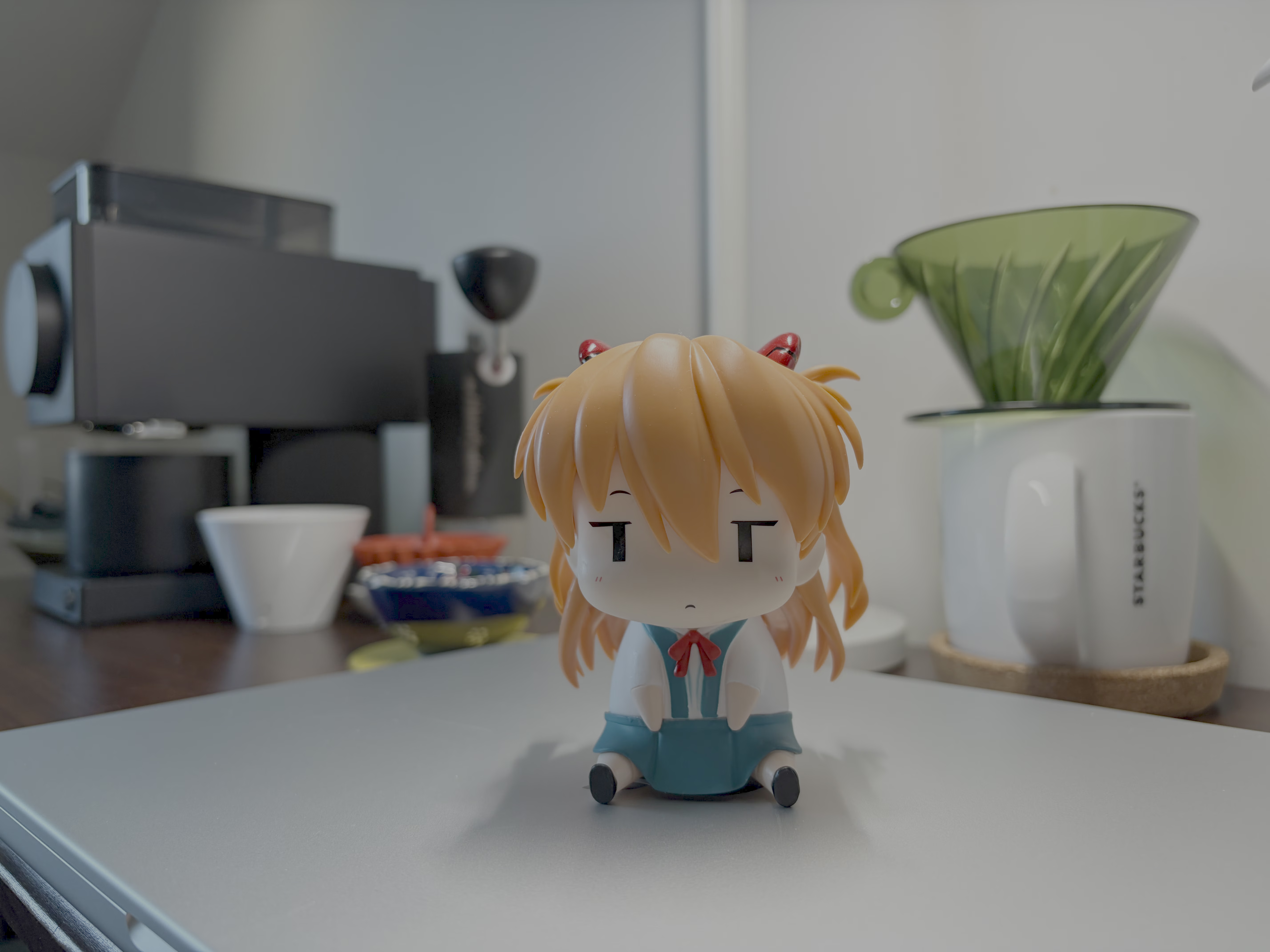
When the three components are first extracted with Core Image and then converted manually, highlights are not clipped, yet small deviations still appear for reasons that remain unclear. The image below shows the result of this semi-manual workflow.
Highly Compressed HDR Images
Earlier a friend tried converting these iPhone HDR photos into single-layer HDR images and used AVIF to achieve a higher compression ratio. The project relied entirely on manual parsing and conversion, resulting in some visible differences from the original.
Now that we have Swift, we can call Apple frameworks end-to-end for both reading and conversion, including output to AVIF or HEIC. On macOS the results are pixel-identical. I have temporarily placed the small script on object storage for anyone to test.
Click Download.
swift encoding-apple-heic-beta.swift
Looking back, however, can single-layer pure HDR formats really achieve a significant improvement in compression ratio?
- Dual-layer: one 8-bit full-resolution RGB image plus one 8-bit quarter-resolution greyscale image.
- Single-layer: one 10-bit full-resolution RGB image.
Note: HDR Screenshots on iOS 26
With iOS 26 Apple added support for HDR screenshots. Although they are still stored as HEIC files with a dual-layer structure, the manual parsing approach differs from that used for iPhone-captured HDR photos. Reading them through Apple frameworks works without issue.